> ## Documentation Index
> Fetch the complete documentation index at: https://docs2.travtus.com/llms.txt
> Use this file to discover all available pages before exploring further.
# O365 ToDo
# Introduction
You can track Adam tasks in O365 ToDo by following the steps below:
# Delegating our app access to your Microsoft account
To grant our app access to your Microsoft account, please follow these steps:
1. Provide us with a Microsoft e-mail address associated with the relevant ToDo items.
2. We will set up your user and send you an authentication code via e-mail. Please keep this code safe for further steps.
It is essential that you complete the following steps immediately after receiving the authentication code. The code is set to expire, so if you do not take the necessary steps in a timely manner, we will need to restart the process by generating a new code.
3. Navigate to [this link](https://microsoft.com/devicelogin). You will be asked for the authentication code we sent you - please enter it.
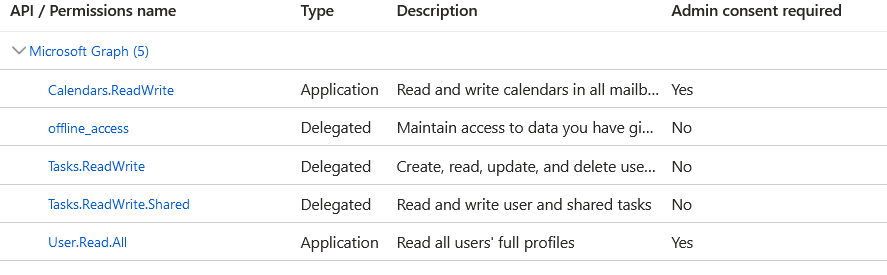
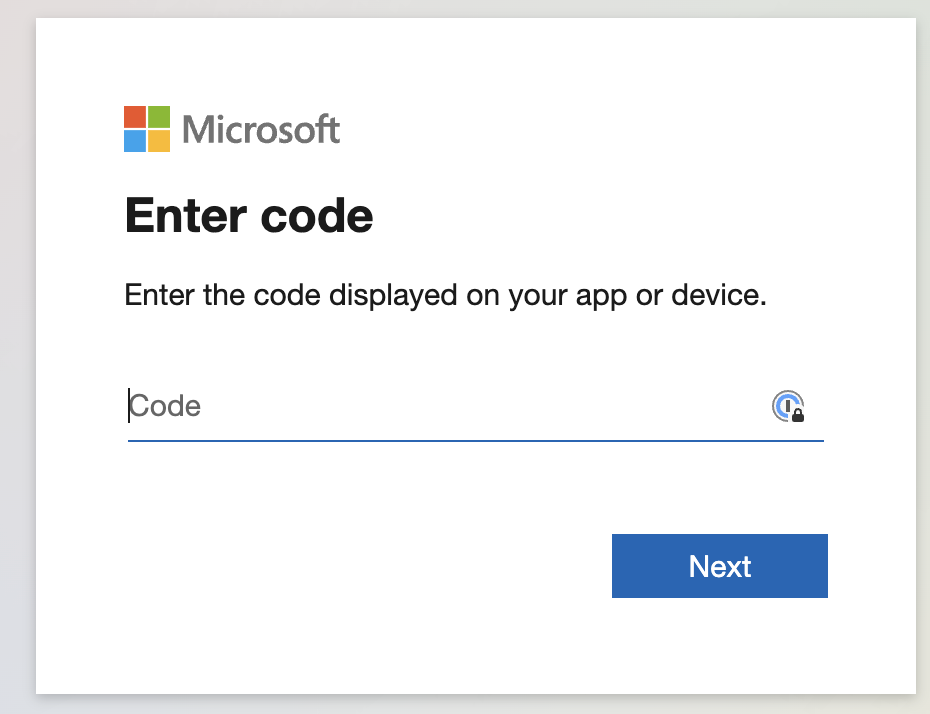 4. You will be asked to approve a list of permissions we require to synchronise with ToDo. Please select 'Approve'. The list of permissions requiired are outlined below:
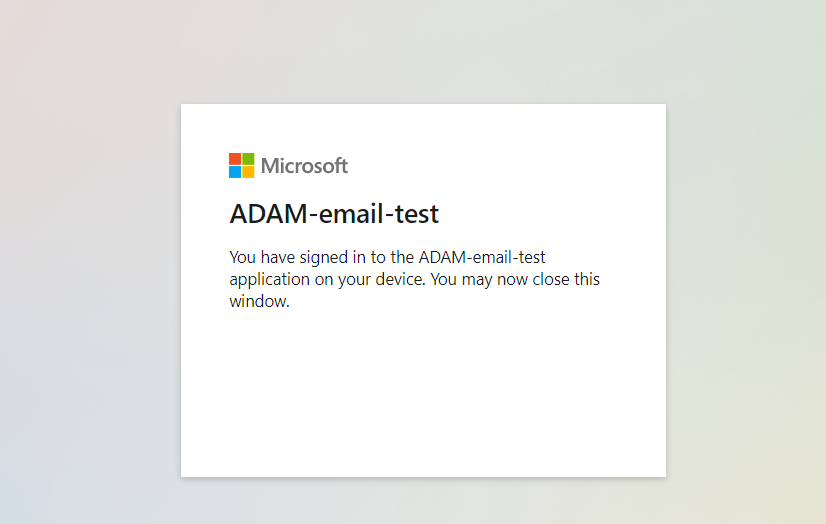
 5. Once logged in, you should see the below message:
 # Allowing our app to access ToDo and other related services
Once you have granted access to your Microsoft account, please follow these steps to allow our app to access ToDo and other related services:
1. Log into the [Azure portal](https://portal.azure.com/) as an admin.
2. Navigate to Azure Active Directory.
3. Select **ADAM3-TODO**
The **ADAM3-TODO** application will only be listed here if you have successfully completed the steps outlined above, under **Granting our app access to your Microsoft account**.
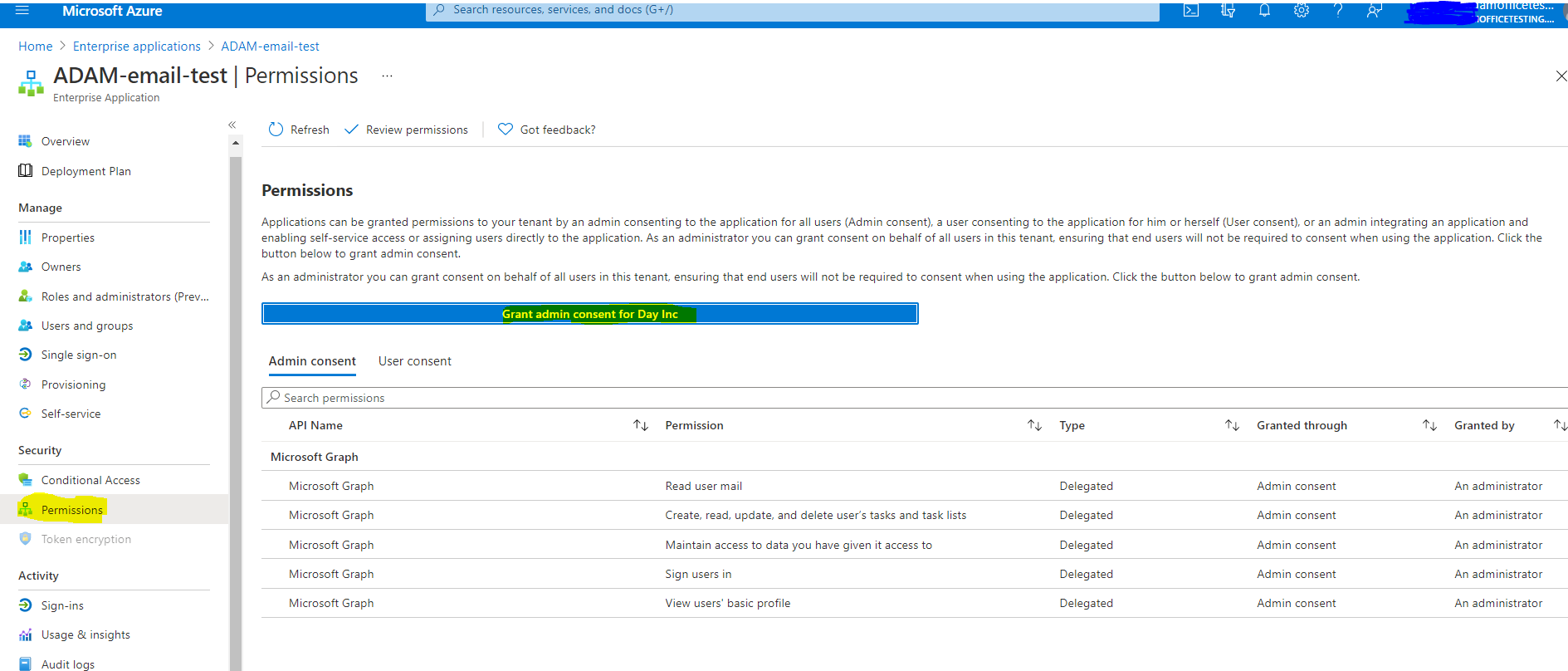
4. Select **Permissions** from the **Security** menu.
5. Click on **Grant Admin consent** for the list of Delegated Permissions to Access TODO and other related services.
# Allowing our app to access ToDo and other related services
Once you have granted access to your Microsoft account, please follow these steps to allow our app to access ToDo and other related services:
1. Log into the [Azure portal](https://portal.azure.com/) as an admin.
2. Navigate to Azure Active Directory.
3. Select **ADAM3-TODO**
The **ADAM3-TODO** application will only be listed here if you have successfully completed the steps outlined above, under **Granting our app access to your Microsoft account**.
4. Select **Permissions** from the **Security** menu.
5. Click on **Grant Admin consent** for the list of Delegated Permissions to Access TODO and other related services.
 Once you have followed the steps above, your Microsoft ToDo integration with Adam should be set up and ready to use!