> ## Documentation Index
> Fetch the complete documentation index at: https://docs2.travtus.com/llms.txt
> Use this file to discover all available pages before exploring further.
# Community Groups
Grouping your communities into the groups you use internally, such as their region or collection, allows you to more easily review and interact with your data.
**💡 Tip**: If you do not see groups in your My Communities area or within a goal then it might be that you don't have access to specific groups or that your organization doesn't yet have any groups set up. [Contact us](mailto:support@travtus.com) if you need support for this.
## **Groups in the My Communities page**
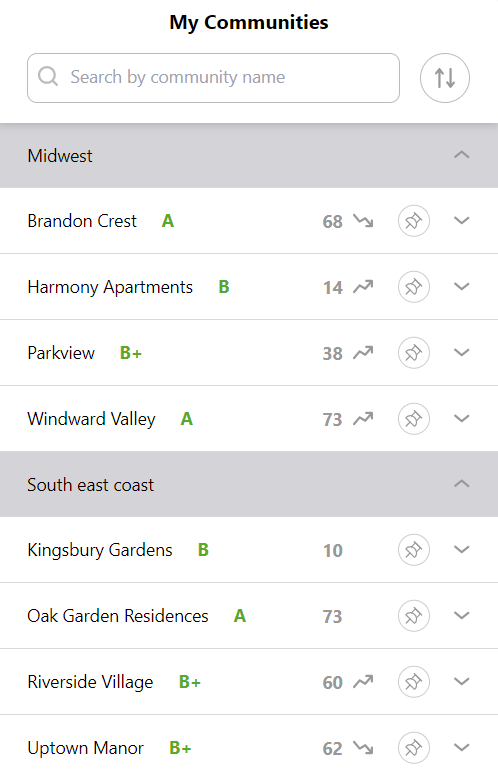
Here you'll see the communities organized into their groups as shown below. When you first navigate to the list, the groups will be collapsed; clicking a group title expands the list.
 ## **Filtering by groups**
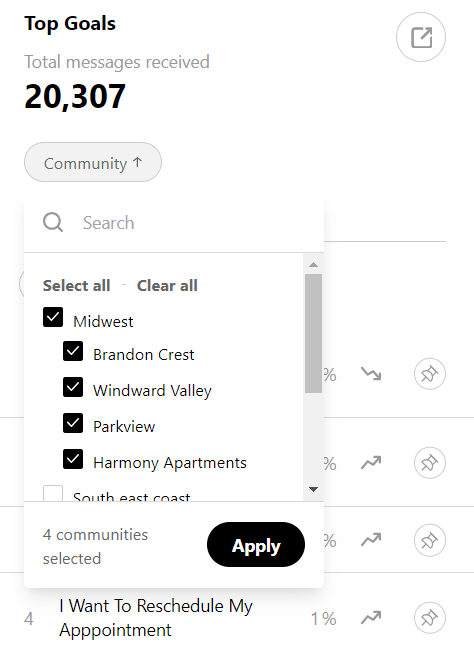
On the Customers list, and the **Messages** and **Goals** screens, you'll see your communities organized into their groups as shown below. Selecting a whole group will filter the data on the page by data associated with those communities.
This allows you to understand more easily the patterns in the data within specific groups - for example, identifying whether customer (or staffing) needs vary from region to region.
## **Filtering by groups**
On the Customers list, and the **Messages** and **Goals** screens, you'll see your communities organized into their groups as shown below. Selecting a whole group will filter the data on the page by data associated with those communities.
This allows you to understand more easily the patterns in the data within specific groups - for example, identifying whether customer (or staffing) needs vary from region to region.
 **💡Note that a community can belong to more than one group.**