> ## Documentation Index
> Fetch the complete documentation index at: https://docs2.travtus.com/llms.txt
> Use this file to discover all available pages before exploring further.
# Community Summary
## **How to get there**
**To get to a community page**, you can click on its name from alerts within the **Newsfeed**, or by selecting **Communities** from the menu in the top right then selecting a specific community from the list.
 ## **How to interpret**
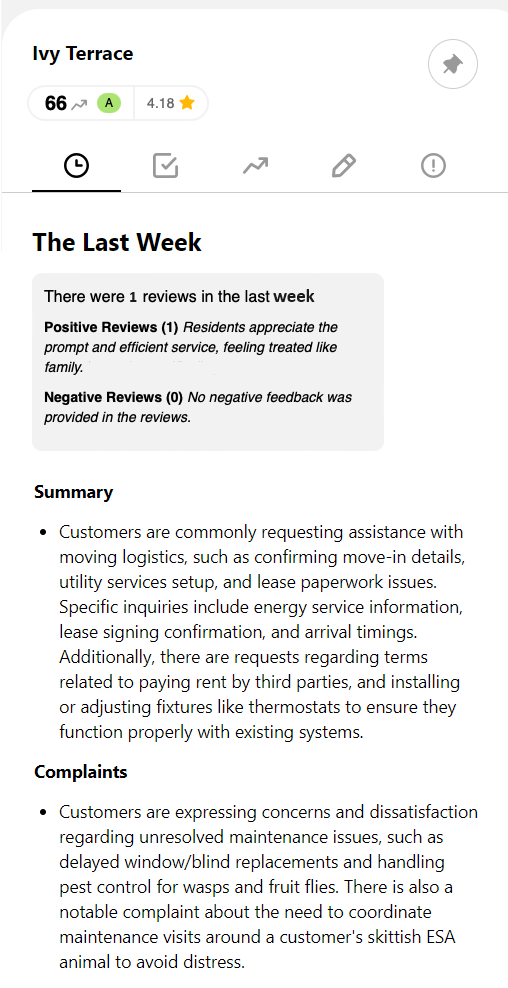
Underneath the community name, you'll see the current [****community score and rating****](https://docs2.travtus.com/features/communities/community-scoring-and-trending), and, if applicable, the **review score** (this is an aggregation of all historic review data we have for this community).
The first page you'll see when clicking on a community breaks down the data related to that community into:
* **Reviews**: a summary of any reviews customers have left for the community \[Note this is only available if you are sending this data source. Please [get in touch](mailto:support@travtus.com) if you'd like to discuss how to do this].
* **Complaints**: anything our models identify in your data as a complaint
* **Risks**: anything our models identify as physical or safety risks to the community
* **Escalations**: a need to escalate can be due to the seriousness of the issue, risk or customer frustration
* **Summary**: an overview of the themes in the community
Use this page and the community score as a way of **quickly getting up to speed with what's been going on in the community**.
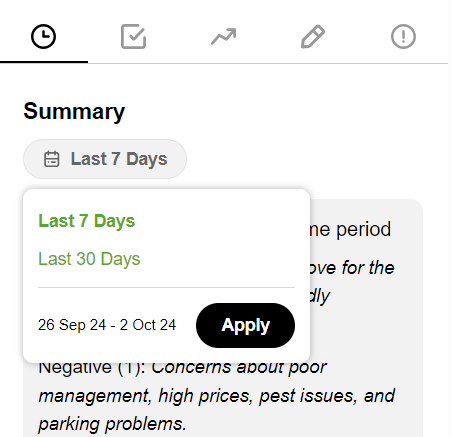
💡**Tip**: Note that the data on this page will show data relating to either the last 30 days or the last 7 days, depending on what time filter you have selected.
## **How to interpret**
Underneath the community name, you'll see the current [****community score and rating****](https://docs2.travtus.com/features/communities/community-scoring-and-trending), and, if applicable, the **review score** (this is an aggregation of all historic review data we have for this community).
The first page you'll see when clicking on a community breaks down the data related to that community into:
* **Reviews**: a summary of any reviews customers have left for the community \[Note this is only available if you are sending this data source. Please [get in touch](mailto:support@travtus.com) if you'd like to discuss how to do this].
* **Complaints**: anything our models identify in your data as a complaint
* **Risks**: anything our models identify as physical or safety risks to the community
* **Escalations**: a need to escalate can be due to the seriousness of the issue, risk or customer frustration
* **Summary**: an overview of the themes in the community
Use this page and the community score as a way of **quickly getting up to speed with what's been going on in the community**.
💡**Tip**: Note that the data on this page will show data relating to either the last 30 days or the last 7 days, depending on what time filter you have selected.
 Clicking the **Share** button at the bottom will offer you two options:
* **Copy**: this copies the text to your clipboard so that you can paste into your chosen form of communication: this can be useful if you want to send it in an instant messenger or use it as part of a report.
* **Email**: this will open your chosen mail provider with the text already contained in the body of the email. Use this if you just want to quickly share the information with a colleague.
Clicking the **Share** button at the bottom will offer you two options:
* **Copy**: this copies the text to your clipboard so that you can paste into your chosen form of communication: this can be useful if you want to send it in an instant messenger or use it as part of a report.
* **Email**: this will open your chosen mail provider with the text already contained in the body of the email. Use this if you just want to quickly share the information with a colleague.