> ## Documentation Index
> Fetch the complete documentation index at: https://docs2.travtus.com/llms.txt
> Use this file to discover all available pages before exploring further.
# My Tasks
# **How to get there**
You can see your tasks by navigating to **Menu > Tasks.**
 ## **Automated task creation**
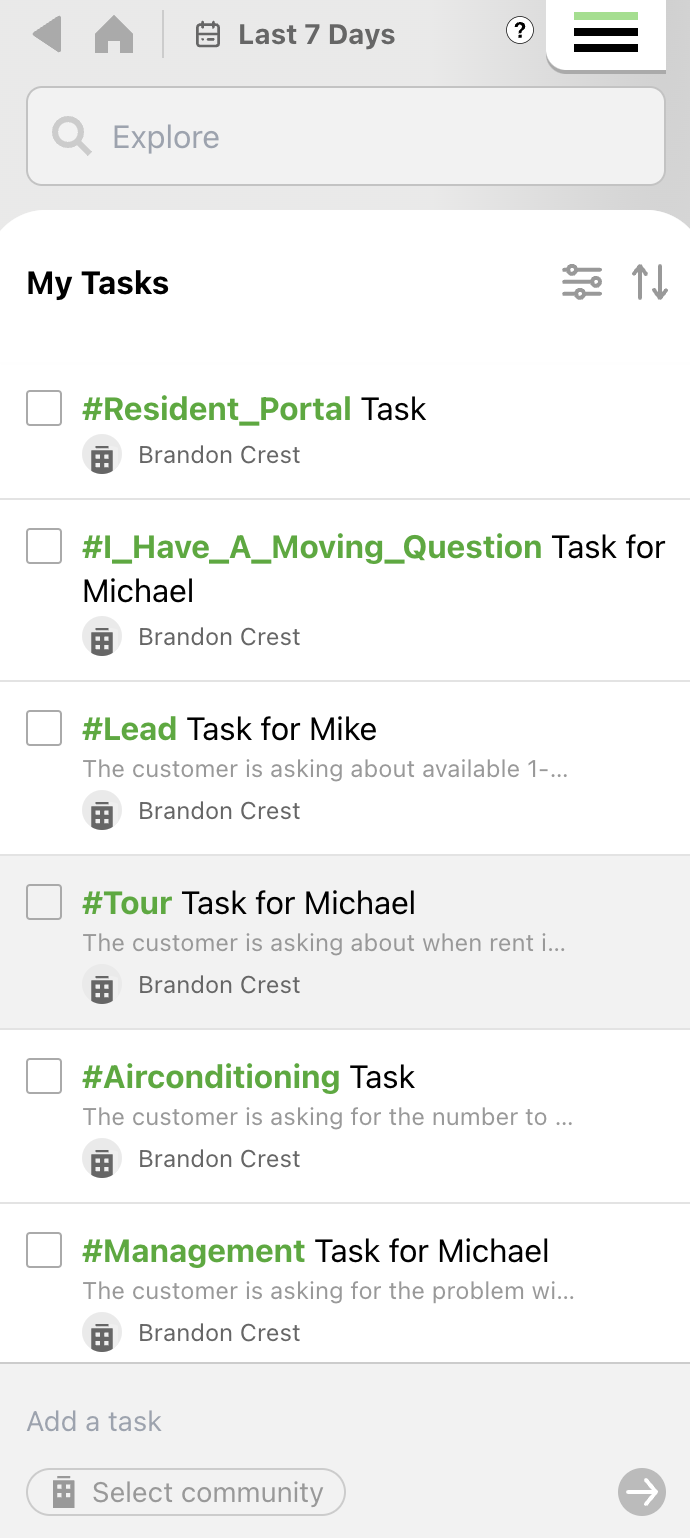
A task is created when you have the **Respond** feature turned on. Click [here](https://docs2.travtus.com/getting-started-with-travtus/how-does-it-work) to read more about how it works. In the list of tasks, you will see:
* The task, due date and community of each
* The ability to **filter** by community and assignee
* Completed tasks at the bottom
## **Creating a task yourself**
It's also possible to create a task for yourself. If you navigate to **Menu > Tasks**, you will see a section at the bottom where you can add your own task - simply type into the box and select a community. Once you've created the task, you can also add the following detail:
* Description
* Assignee
* Category (e.g. leasing, maintenance)
* Due date
* Priority
## **Automated task creation**
A task is created when you have the **Respond** feature turned on. Click [here](https://docs2.travtus.com/getting-started-with-travtus/how-does-it-work) to read more about how it works. In the list of tasks, you will see:
* The task, due date and community of each
* The ability to **filter** by community and assignee
* Completed tasks at the bottom
## **Creating a task yourself**
It's also possible to create a task for yourself. If you navigate to **Menu > Tasks**, you will see a section at the bottom where you can add your own task - simply type into the box and select a community. Once you've created the task, you can also add the following detail:
* Description
* Assignee
* Category (e.g. leasing, maintenance)
* Due date
* Priority